 |
| Leading Translation Management System for Translation Agencies, Top Translation Management Software for Freelance Translators, Time Tracking Software, Word Count, Character Count and Line Count Software, Computer Assisted Translation Tool for Easy Word Count, Clipboard Character Count Software, User-Friendly Translation Memory Software, Terminology Management Software, Terminology Management Server, Microsoft Glossary Software, Dictionary of Acronyms, Social Network for Translators and Translation Agencies, Acronyms and Abbreviations Search Engine, Russian Translation Lab, Ukrainian Translation Lab. |
You are reading help file online using chmlib.com
|
Double Pinyin Input
In double pinyin mode, every keystroke represents either a consonant or a vowel of Chinese
pinyin.
In double pinyin mode, user would type two keys for a single Chinese character, the first is an initial consonant and the second is the simple or compound vowel. For example, assuming the "MSPY default" double pinyin scheme is adopted, while user types "yivikeoldexchwmk", "Т»Ц»їЙ°®µДРЎ»ЁГЁ" appears in compose window.
User could customize double pinyin scheme by redefining key assignments.
Using Full Pinyin Input
- Click button
 on the language bar to activate option menu.
- Select "Properties" on option menu.
- Select the "Double Pinyin" radio button on property sheet.
Double Pinyin Key Assignment
- Click button on the language bar to activate option menu.
- Select "Properties" on option menu.
- Click "Double pinyin schemes" label on property sheet.
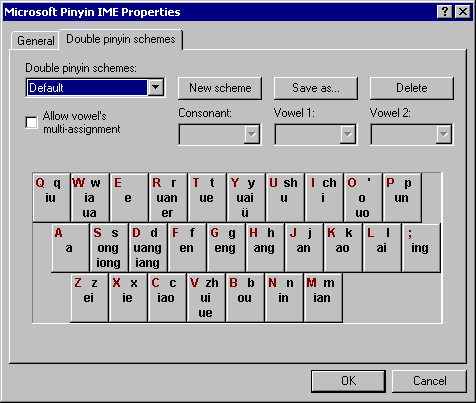
- Click the button "New scheme".
- Choose keys one by one and assign corresponding consonant and/or vowel to it.
- Click the button "Save as", name and save the customized scheme.
- Click "Ok" to close the property sheet.
Notes
- Double pinyin input mode reduces keystrokes and increases Chinese input speed.
- In double pinyin input mode, modeless and incomplete input are not supported.
You are reading help file online using chmlib.com
|
If you want your help file to be removed or added please send e-mail to chmlibcom@gmail.com